Postgres (post 1)
Installing Postgres locally and connecting to it from Python
First of all, what is Postgres and why do I care?
Over the course of our working with data, we come across a lot of ways of storing data - cache, in-mem, files, file based databases, SQL databases, NoSQL databases etc. Each option has a specific set of usecases that are best satisfied by said storage mechanism.
Postgres DB is one such storage mechanism - specifically an Open Source, Relational Database.
Installation -
There are two ways to set up a Postgres instance locally and use it -
a) As a standalone server on your Windows/Linux machine
b) As a docker container that can be spun up on demand
a) As a standalone server on your Windows/Linux machine
The setup process is fairly simple on Windows. You just have to download the EXE installer and walk through the executable’s steps - https://www.enterprisedb.com/downloads/postgres-postgresql-downloads
Note the password you enter for the postgres superuser.
One step that is missing from the installer is adding the path to the psql.exe executable in your PATH environment variable .
Now to access the postgres server , fire up a CMD terminal and use -
psql.exe -U postgres -d postgres -p 5433
The port flag can be set depending on where your postgres server starts.
b) As a docker container that can be spun up on demand
Put the following contents in a file called docker-compose.yml
 1services:
 2  thanos:
 3    image: postgres
 4    restart: always
 5    shm_size: 128mb
 6    environment:
 7      POSTGRES_USER: abhi
 8      POSTGRES_DB: postgres
 9      POSTGRES_PASSWORD: abhi
10    ports:
11      - "6543:5432"
Breaking this file down,
- The first line - Based on what service we want to start, we can specify that particular service in this section that is called, well, “service”.
thanosis the name of the container we want to start. While I used a quirky name just so it would stand out, in production, typically this is more relevant to the type of container that we’d want to start . In this case, the container would be better off being called something likedb.- The image we’re using is that of
postgres. We can get a whole host of what images are valid from https://hub.docker.com/
Assuming docker has been installed, start the docker container using :
1C:\Users\Abhiram\Desktop>docker-compose up -d
Resulting in -

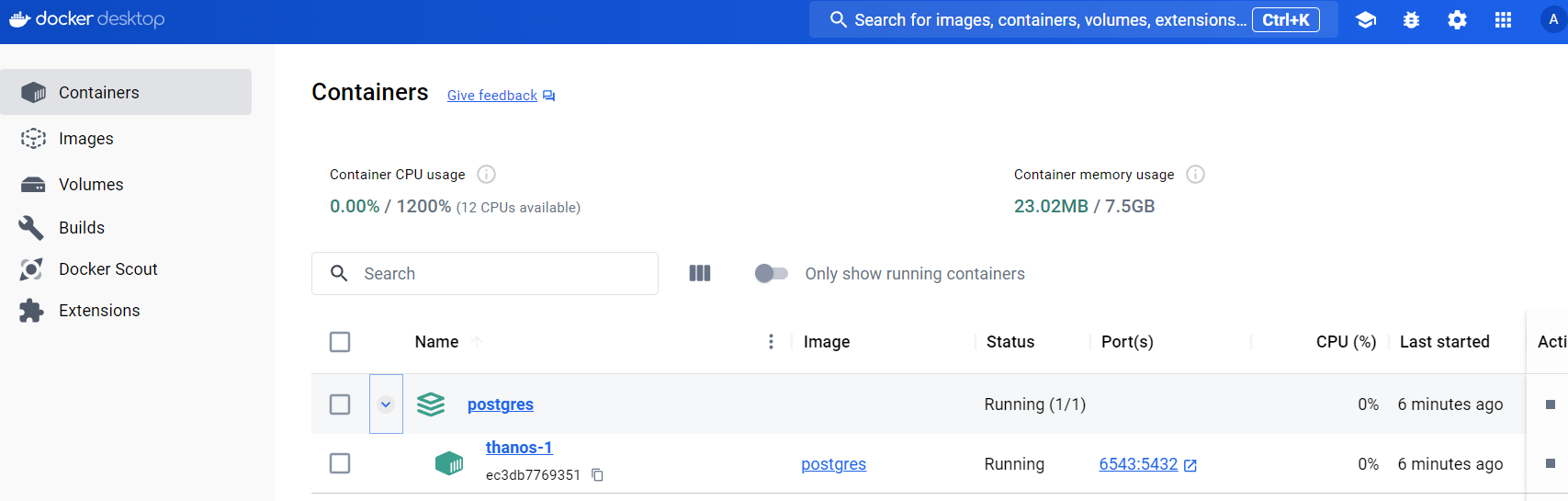
If Docker desktop has been installed, you might even be able to see its creation there -
Connecting to Postgres from Python -
- First, create a virtual environment using
virtualenv(orcondaoruvetc.) because we never pollute the global python environment with additional, specific-use packages - Activate this virtual environment
- Install the psycopg2-binary package using
pip install psycopg2-binary - Test the postgres connection and the creation of the postgres container using this code snippet
 1import psycopg2
 2import logging
 3import argparse
 4
 5# Set up logging
 6logging.basicConfig(level=logging.INFO)
 7logger = logging.getLogger(__name__)
 8
 9# Set up argument parsing
10parser = argparse.ArgumentParser(description='Connect to PostgreSQL database and get version.')
11parser.add_argument('--dbname', type=str, required=True, help='Name of the database')
12parser.add_argument('--user', type=str, required=True, help='Username for the database')
13parser.add_argument('--password', type=str, required=True, help='Password for the database user')
14parser.add_argument('--host', type=str, default='localhost', help='Database host (default: localhost)')
15parser.add_argument('--port', type=str, default='6543', help='Database port (default: 6543)')
16args = parser.parse_args()
17
18try:
19    conn = psycopg2.connect(
20        dbname=args.dbname,
21        user=args.user,
22        password=args.password,
23        host=args.host,
24        port=args.port
25    )     # Define the connection string
26
27    cursor = conn.cursor()  # Create a cursor object
28    cursor.execute("SELECT version();")  # Execute a sample query
29    db_version = cursor.fetchone()  # Fetch and display the result
30    logger.info(f"Database version: {db_version}")
31
32    cursor.close()
33    conn.close()
34
35except Exception as error:
36    logger.error(f"Error connecting to PostgreSQL database: {error}")
Upon execution of this script that is intended to
a) connect to a postgres instance running on port 6543 with user abhi
b) Get the version of postgres running,
This is the response -
1(pgdbenv) C:\Users\Admin\Desktop\postgres>python postgres_connect.py  --dbname postgres --user abhi --password abhi --port 6543
2INFO:__main__:Database version: ('PostgreSQL 16.3 (Debian 16.3-1.pgdg120+1) on x86_64-pc-linux-gnu, compiled by gcc (Debian 12.2.0-14) 12.2.0, 64-bit',)
In summary, in this article we’ve seen how to install postgres locally and connect to it from Python. In the next article, we will explore more about Postgres.